
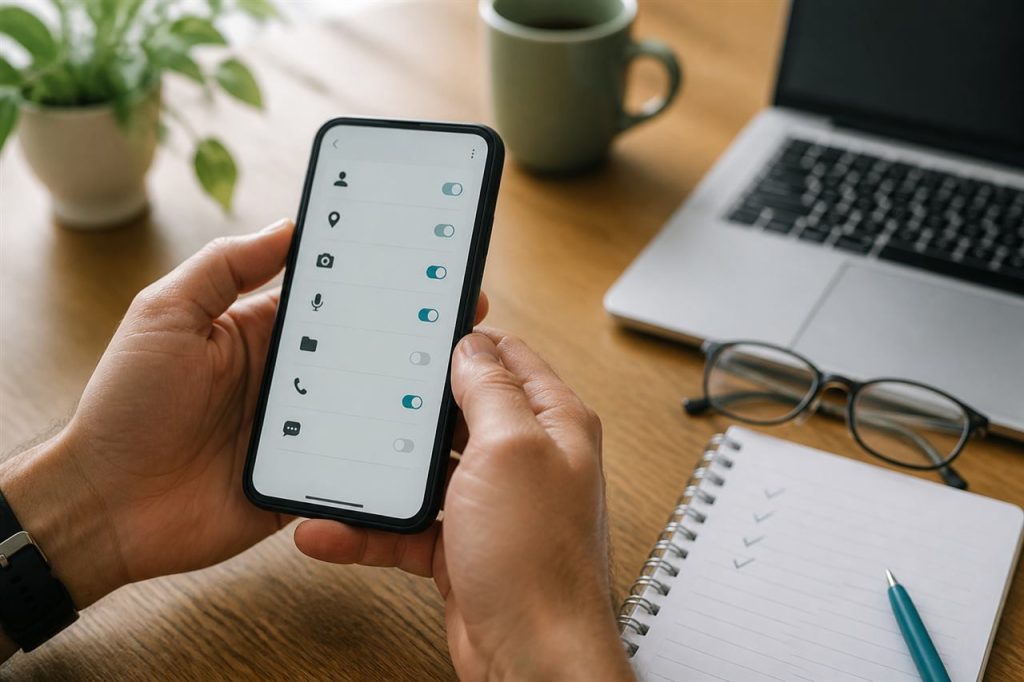
Android permissions determine which parts of a phone an app can use. A permission request is not automatically suspicious, but it should have a clear connection to a feature you understand. This is particularly important when an app also handles login details, identity checks, or payment information.
This PeakRummy guide explains how to review common Rummy app permissions and how to protect account information after installation.
Why permissions matter
A permission is a request for access: storage, camera, contacts, SMS, location, phone state, or accessibility tools. Legitimate Rummy apps may need storage or network access. Requests that do not match the game’s function deserve extra caution.
How to review permission prompts
- Read the permission name and the reason shown on the Android prompt.
- Ask whether the feature you intend to use actually needs that access.
- Deny optional permissions first and enable them later only if a feature fails.
- Open Android Settings → Apps → the installed app → Permissions to change access later.
Account safety habits
- Use a unique password. Do not reuse the password from email or banking apps.
- Never share an OTP, UPI PIN, or recovery code with anyone claiming to be support.
- Keep the app and Android system updated.
- Log out on shared devices and review login history if the app provides it.
Warning signs
Stop and reassess if an installer asks you to disable Play Protect, enable accessibility for “auto click”, or send identity documents through an unofficial chat. PeakRummy cannot recover third-party accounts or process withdrawals.
For more safety context, read our Disclaimer and APK verification guide.